Thursday, 6 October 2016

Using PowerShell to Get Office 365 ActiveSync Device Information

I had a situation where I needed to get some device information about what was connected to my customer's current Office365 ActiveSync environment. Luckily after searching the Internet, I found this process to be rather simple, and I thought I would put my solution up on my blog to give an example of how to do it.

The code I put together focuses around using the get-mobiledevice commandlet rather than the older and eventually slated to be decommissioned get-activesyncdevice commandlet. I also added the export-csv commandlet to give me some output I could easily load into excel. If I put some extra work into it, I could make a native export to Excel, but I was doing a quick and dirty dump of the data.

To kick things off, we need to connect to Office365 so the following code I copied intact from TechNet: https://technet.microsoft.com/library/jj984289(v=exchg.160).aspx
*Make sure to open the PowerShell ISE or shell as an administrator.


Set-ExecutionPolicy RemoteSigned

$UserCredential = Get-Credential

$Session = New-PSSession -ConfigurationName Microsoft.Exchange -ConnectionUri https://outlook.office365.com/powershell-liveid/ -Credential $UserCredential -Authentication Basic -AllowRedirection

Import-PSSession $Session

You should be prompted with a login prompt to connect with your Office365 credentials at this point. The next line is where I pull out specific information about what is connected to ActiveSync.

get-mobiledevice | select deviceid,mobileoperator,id,deviceos,deviceimei,DeviceTelephoneNumber | export-csv C:\Activesync.csv

In the end, I make sure to disconnect my session if I decide to do further work with a different tenant.

Remove-PSSession $Session

I've added a link over here to the full script if you want to download and modify it to suit your needs.
https://1drv.ms/u/s!An-INXqoazfRkckHDEqeUc6lDxXyWw

Make sure to test out the get-mobiledevice commandlet as it can give you a wide range of device information such as:

OriginatingServer
IsValid
ObjectState
RunspaceId
FriendlyName
DeviceId
DeviceImei
DeviceMobileOperator
DeviceOS
DeviceOSLanguage
DeviceTelephoneNumber
DeviceType
DeviceUserAgent
DeviceModel
FirstSyncTime
UserDisplayName
DeviceAccessState
DeviceAccessStateReason
DeviceAccessControlRule
ClientVersion
ClientType
IsManaged
IsCompliant
IsDisabled
AdminDisplayName
ExchangeVersion
Name
DistinguishedName
Identity
Guid
ObjectCategory
ObjectClass
WhenChanged
WhenCreated
WhenChangedUTC
WhenCreatedUTC
OrganizationId
Id
OriginatingServer
IsValid
ObjectState


Tuesday, 10 May 2016

When Does Driver Injection Make Sense?

Over the years I've generally stayed with a specific piece of advice when performing driver injection when deploying Windows images using Microsoft Deployment Toolkit or System Center Configuration Manager. You start with the expanded driver files and import them while removing drivers that are not relevant to the platform you are deploying. Then you deploy the operating system with driver injection to see which drivers successfully install then remediate the remaining by installing them manually and using a tool such as Driver Magician to export the drivers for import into Configuration Manager. Or you might need to make silent installations of the OEM driver installers that get installed as packages via the task sequence after the Windows operating system has been applied.

All of these techniques generally works well with the exception of storage and network drivers because if Windows PE does not have network or more importantly storage drivers that work with your hardware you won't be able to image the machine. If you look deeper you might realize that there is even more that needs to be considered when deploying drivers with your Windows operating system. For example the most obvious issue is the front end software a driver might have to perform tasks such as further configuring the behavior of the device to updating the device software on a regular basis. For example some of my users using a high end display setup may want the advanced configuration control panel for their device that would not be offered if we did simple driver injection. A perfect example would be the NVIDIA control panel below.


Of course automatic updates might not be desireable in an enterprise but the advanced features may be something to consider. Off the top of my head I've seen the following types of devices use additional software to enhance the driver experience.

  • Mouse / Pointer
  • Keyboard 
  • Display
  • Printer / Scanner / Multifunction Printer
  • Trusted Platform Module Chip
  • Network Adapters
  • Bluetooth
  • Sound Devices

Further to that there are some installers that expose more information about the device via WMI and the driver installer creates the related classes. The reason this might be of importance is if you are using client management software such as System Center Configuration Manager to collect hardware inventory data of your deployed systems.

What I am trying to recommend is that you take a closer look at how you build your systems and determine if deploying the driver itself gives the user the experience they need and satisfies the system administrator's requirements rather than just injecting as much as possible. The network and storage drivers will need to be initially injected if Windows PE cannot communicate with the devices out of the box but where you go from there should be done with some care rather than following some hard and fast rules.

Monday, 2 May 2016

Azure RemoteApp & App-V: Cloud Service vs Resource Manager


I've been playing around with Azure RemoteApp and App-V in Azure to find a nice little limitation that I think is a huge design consideration. Lately I've been deploying my virtual machines with Azure Resource Manager because it is the future platform and it offers many features not available in the Azure Cloud Services model. The main attraction to me is network security groups where I can essentially configure a network level firewall for different systems in Azure. But more importantly is the Resource Manager Templates, these allow you to build environments in Azure that can be exported to templates so that they can be easily provisioned for development, test and production environments.

The issue I wish to discuss is about a limitation many of you may not be aware of unless you try to deploy RemoteApp and require connectivity to servers in Azure Resource Manager. The first limitation is that the Azure RemoteApp servers must reside on a different virtual network than the servers provisioned using Azure Resource Manager. There can be no sharing of VNet address space between models. The most interesting part is that these virtual networks do not communicate to each other by default which creates the most challenging piece of the problem.

In order to provide connectivity between virtual networks you will need to implement a VPN between virtual networks. This means your bandwidth between networks will be constrained to 100 megabits (basic and standard) to 200 megabits (high speed) depending of the gateway you are using inside of Azure.

If you are deploying App-V Management Servers in Azure and want the best performance I would recommend that you deploy those virtual machines using Cloud Services for the short term. You may also want to keep this in mind with the supporting application infrastructure because the gateway could get congested with that traffic as well.

Here are some links as to help you with configuring the VPN if you need to pursue this architecture.

Connecting classic VNets to new VNets

About VPN gateways

Saturday, 23 January 2016

How do I Force an Intune Policy Sync on Windows 10

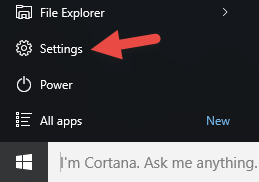
When testing or trying to resolve an issue the default sync settings with Intune can be lacking. If the device is enrolled the initial behavior is every 3 minutes for 30 minutes, and then every 24 hours. If a policy or application is sent to the device Intune will try to notify the device within five minutes, otherwise the device should check in every 24 hours. To force the policy sync on a device open the Start menu and select Settings.


Select Accounts.

Select Work access then the organization you are subscribed to. At this point there should be additional buttons that appear below. Click the sync button to do a policy synchronization with Intune.

To get more information about the sync action you can click the Info button.

You can see if the last sync was successful, when the last sync was successful and the last attempted sync. The URL of the management server being used is also displayed.


Wednesday, 6 January 2016

Intune Entrollment Error: System policies prevent you from connecting to a work or school account.

I had some fun getting to the bottom of this error and I found some potential issues that can cause this error to pop up that might not be apparent. We had the Azure AD user account configured for Azure AD Join and the user was not over the limit of devices they could enroll (default 5). We wanted to enroll the device into Intune using the following procedure. First open the Settings menu from the Start menu.


 Select Accounts.

Then select Work access and notice the error under Enroll in to device management.

What we did run into is two items that were generating the error.
  1. Don't perform Azure AD Join with the default administrator account.
  2. To enroll in Intune make sure the user performing Azure AD Join on the device is a local administrator.
Also make sure the machine is not domain joined and when the user enrolls the device into Azure AD they do not become a local administrator unless they were one to begin with. If the proper conditions are met the device enrollment dialog should have a plus sign to begin the enrollment process.

You will be asked to supply your Azure AD logon ID then click Continue.

Put in your password then click Sign in.

If two factor authentication is set up the follow page will appear. Select Set it up now to continue.

In this example I set my country to Canada then configured the system to send me a text message to the phone number I have configured previously for two factor authentication. I will click Contact me to continue the verification process.

I will enter in the security code sent to my cell phone then click Verify.

Now that I am authenticated I can select Done to complete the process.


You should now see your enrollment details in the Settings menu.

Hope this helps your experience go
a little more smoothly.

Tuesday, 10 November 2015

Microsoft Most Valuable Professionals Are More Than Experts

Microsoft Most Valuable Professionals Are More Than Experts


This year’s Microsoft Most Valuable Professional Summit in Redmond, Washington was an excellent event that showcased over 50 technical sessions and brought together many influential people from around the World.


I’ve had the honor of being successfully nominated as a Microsoft MVP for seven years running, and I was eager to participate in this year’s event.


I’m also excited to share some of the highlights from the event with you because I believe in the MVP program and what we’ve accomplished as professionals in such a dynamic and deep industry over the years, and I wanted to give aspiring MVPs and the community some insight into the program.

So who are these Microsoft MVP’s anyway?

Microsoft defines the Most Valuable Professional Award as:


The Microsoft Most Valuable Professional (MVP) Award is an annual award given to outstanding members of Microsoft's technical communities based on contributions made during the previous 12 months to offline and online Microsoft-related technical communities.


The nomination process is open to everyone over the age of 18, and it is useful to look at the information that Microsoft collects on the MVP application form here (You will need to login to access the form).


For the most part, the process to award MVP designation to applicants is not accessible to the public, however, I can share with you a few key elements that all MVPs get evaluated on.

An MVP is considered to be a subject matter expert in a Microsoft technology that they get nominated in.


A subject matter expert is a user of Microsoft technology that can have their expertise demonstrated through Microsoft certification (e.g., MCSE, MCP, MCSD), teaching courses or publishing content on how to use Microsoft technologies in the real world.


Recently, Microsoft has introduced newer classifications that allow MVPs to be recognized under a more broad scope of skills, however, the classifications remain specific to designation as there are still some very specific designations, e.g., Microsoft Project.


Microsoft has outlined some of their new classifications here, and how some of the designations have been consolidated into broader categories. Overall, the consolidation of roles makes sense, but sometimes it doesn’t fit your broader skill set.

Social engagement matters to MVPs

One of the driving reasons for the MVP program is to recognize visible members in the community who participate in sharing knowledge about Microsoft products. The goal is to ensure that the ecosystem of Microsoft products is supported by an engaged and active user base that works collaboratively to deliver professional solutions.


This doesn’t mean you have to restrict your contributions to only a specific technology, but it does help identify where you would best fit during the nomination process.


Sharing of knowledge can come in many forms:
  • Running user groups
  • Blogging
  • Social Media
  • YouTube
  • Whitepapers
  • Public speaking
  • Creating tools
  • Participating in technology forums
  • and many others

The nomination comes from inside Microsoft another MVP or yourself!

If you have completed one (or more) Microsoft Certifications, worked directly implementing your expertise into real-world solutions, or are an an active member of the community, then likely someone inside Microsoft or another MVP will put your name forward.


  1. Everyone who is nominated receives an email notice that his or her name has been put forward.
  2. If your nomination is successful you will receive a follow-up email that contains the onboarding instructions for the program.


Note. This sometimes doesn’t happen the first time. In the event that you don’t get accepted right away, I recommend that you don’t get discouraged and keep doing what you’ve been doing. I was nominated three times before I was finally accepted.
Generally speaking, technologies that have been around longer are the most competitive programs because you are competing against an established roster of MVPs who may be very active.


If you have decided to specialize in a new technology, then do so because it aligns with your professional goals not because you think it affords you a marketing advantage. I would strongly discourage aspiring MVPs from approaching the program this way.


Your MVP designation should be about your passion and not just an achievement.


If you’re an active member of the community, and you consistently produce quality content, then you will make it!


Tip. A great way to get feedback is to engage with MVPs in the designation you are interested in, and look up the MVP lead for your region as they may be able to help mentor you.

Why the MVP designation matters

At this point you might be wondering, what’s the big deal about the program? Does the significant time and effort required to qualify for a nomination provide a return on your investment?

The benefits of a MVP designation

If you ask me, the most important benefit is the recognition amongst fellow MVPs in my specialization and direct contact with the product group for my MVP specialization in Microsoft technology. I can turn to fellow MVPs to provide thoughtful, razor sharp feedback and support about problems and issues that emerge in my own environments.


High up on the list of benefits is access to the yearly MVP summit. This is where MVPs from around the World get to meet face-to-face and forge lasting relationships throughout their industries with fellow MVPs and employees at Microsoft. Microsoft takes care of a significant portion of the cost to attend, and, if that weren’t enough, they schedule an extensive array of technical sessions where Microsoft Product Managers and Developers showcase new developments and solicit feedback from the MVP community.


Beyond the yearly summit, my MVP status gives me access to the Product Managers and Product Team for my designated technology throughout the year. I’m able to provide the product team with valuable data and insight such as use cases not considered by the product team or errors that that cause significant pain to customers. This in turn helps improve the product design and helps prioritize issues inside the development team.


Another useful benefit of the MVP Award is a MSDN membership, which gives you access to software, Office 365 subscription and Azure credits so you can explore the Microsoft cloud.


There are some free support tickets to assist you if you really get stuck using Microsoft products in your lab environment and access to training materials found through Yammer, Pluralsight subscriptions and other channels.


Some vendors even offer free software or NFR licenses to MVPs which helps expand your understanding of the Microsoft ecosystem by exploring some third-party enhancements. If you do some research sometimes it is surprising what you have access to.
What has made the program even more valuable has been the additional mailing lists with related technologies and product group meetings.


There is a new trend towards openness (a relatively new phenomenon) within Microsoft, which I believe gives the program far more value than when I started many moons ago. The world at Microsoft has changed. There is more focus on customer feedback to drive design decisions.


I’ve also found it easier to reach outside of my designation and talk to product groups outside of my designation. Like many of you reading this, many MVPs consult on more than one Microsoft technology, as such, Microsoft’s commitment to openness more closely mirrors our daily experiences with customers and user groups.


One final benefit of the MVP program is that we are some of the first non-Microsoft professionals that are brought up to speed on the latest developments and technologies at Microsoft. This is often covered by a strict non-disclosure agreement, but I find that there is still value because I get quality information and the opportunity to give early feedback before these technologies are introduced to the public.

More About This Year’s MVP Summit

The MVP Summit is exclusive to current MVPs and Microsoft pays for your accommodation if you split your room with another MVP or subsidizes your room if you prefer a private room. The conference is free and meals are provided along with networking events. This is the time of year where MVPs get to meet with members of the product groups and some of the senior executives at Microsoft.


This year’s MVP summit takes the openness to a new level where the freedom given to choose which sessions you attend has opened up significantly. I believe this is more valuable because I can pick sessions outside my expertise, and even sit in on developer sessions where my specific MVP designation may not suggest my interest/experience in that technology.


The best thing I have seen overall is the shift in Microsoft to be more customer focused and really listen to feedback.


Even having earned the status of MVP, I had the opinion that some of the product groups were like a “brick wall” when submitting feedback. Having said that, it appears that the culture within Microsoft has begun to embrace openness and that has been exciting to watch as the organization takes on more aggressive product development cycles, and a willingness to listen and evaluate feedback from the industry.
The networking that happened this year was something I enjoyed very much, especially when you run into various MVPs from different backgrounds and regions. Everyone that I talked to was more than happy to entertain questions and share their insights on technologies and trends.


I had two main goals this year at the Summit. One, was to get feedback about Microsoft’s efforts in the cloud and, two, deepen my understanding about how Microsoft’s focus on all things “cloud” impacts my line of work and the future direction for my career.


The take home message when it comes to becoming a successful Microsoft MVP is to never stop learning and changing who you are. Especially with more emphasis on cloud technologies and agile development methodologies, you see products updating once a month or in some cases, even faster.


It is a new world almost everyday, and I find it exciting.


If you are passionate about technology and like sharing knowledge, then I recommend that you consider the route of becoming a Microsoft MVP!


Share your experiences about becoming a Microsoft MVP in the comments below.

Monday, 19 October 2015

Quick Query to Find Devices without Forefront Endpoint Protection

The status of the endpoint protection agent is stored in SMS_G_System_EPDeploymentState SCCM database view but the key to the query is filtering on the DeploymentState field. The query below will return any machine that is not fully managed via Configuration Manager.

select SMS_R_System.Name, SMS_G_System_EPDeploymentState.DeploymentState, SMS_R_System.Active, SMS_R_System.ADSiteName, SMS_R_System.IPSubnets, SMS_R_System.IPAddresses, SMS_R_System.SystemOUName from SMS_R_System inner join SMS_G_System_EPDeploymentState on SMS_G_System_EPDeploymentState.ResourceID = SMS_R_System.ResourceId where SMS_G_System_EPDeploymentState.DeploymentState != 3

What you need to understand is the different values of the DeploymentState column as the value 3 is the only true successful state. The values can be described as follows:

1 - Unmanaged
2 - To be Installed
3 - Managed (Success)
4 - Failed
5 - Reboot Pending

Happy reporting!